SScheduler App Manual (For Nurses)
This manual guides nurses through the OaaSIS Scheduling mobile app (쓱케줄러) — viewing your personal schedule, checking the ward-wide schedule, and submitting schedule modification requests.
Quick Start
- Receive the app installation link and sign-up instructions from your ward manager.
- Install the app, then register with your email and password.
- After login, check this month's schedule on the home screen.
- Use the request button to send modification requests to your ward manager.
1. Getting Started
Search for 쓱케줄러 on the App Store or Google Play to download the app.
1.1 Sign Up
- Launch the app and tap Sign Up.
- Enter your email address and a password (minimum 4 characters).
- Once registered, you are logged in automatically.
Enter your name and staff ID exactly as registered — the system automatically matches you to your ward profile so your schedule appears right away. No manual approval is needed.
1.2 Login
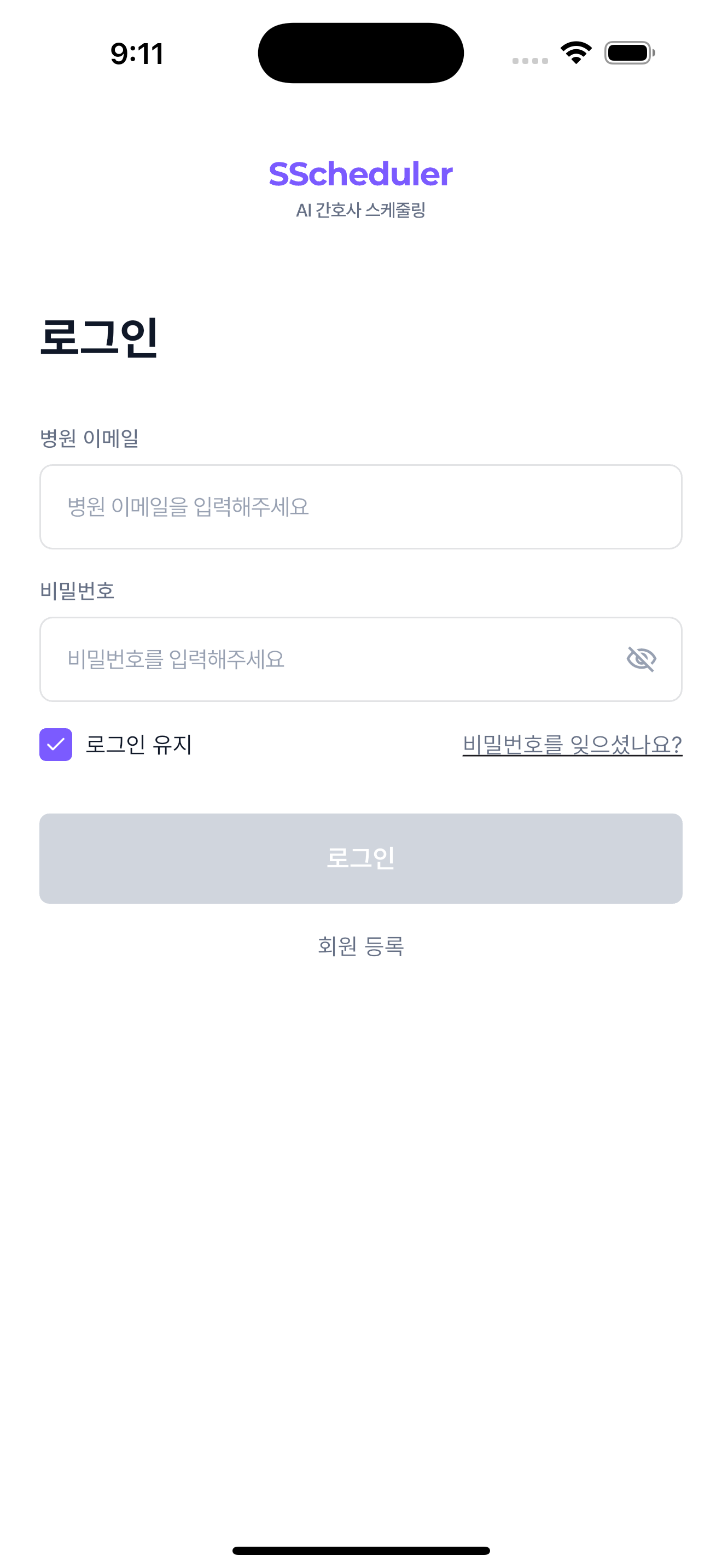
- Enter your email and password.
- Enable Keep me logged in to skip login on future launches.
- Tap Login.
1.3 Forgot Password
- Tap Forgot your password? on the login screen.
- A reset link will be sent to your registered email.
2. My Schedule
The home screen shows your shift schedule for the current month in calendar format.
- Use < > buttons to navigate between months.
- Shift types (D, N, E, OFF, etc.) are shown on each date.
- Weekends are highlighted in red.
- Pull down to refresh and load the latest schedule.
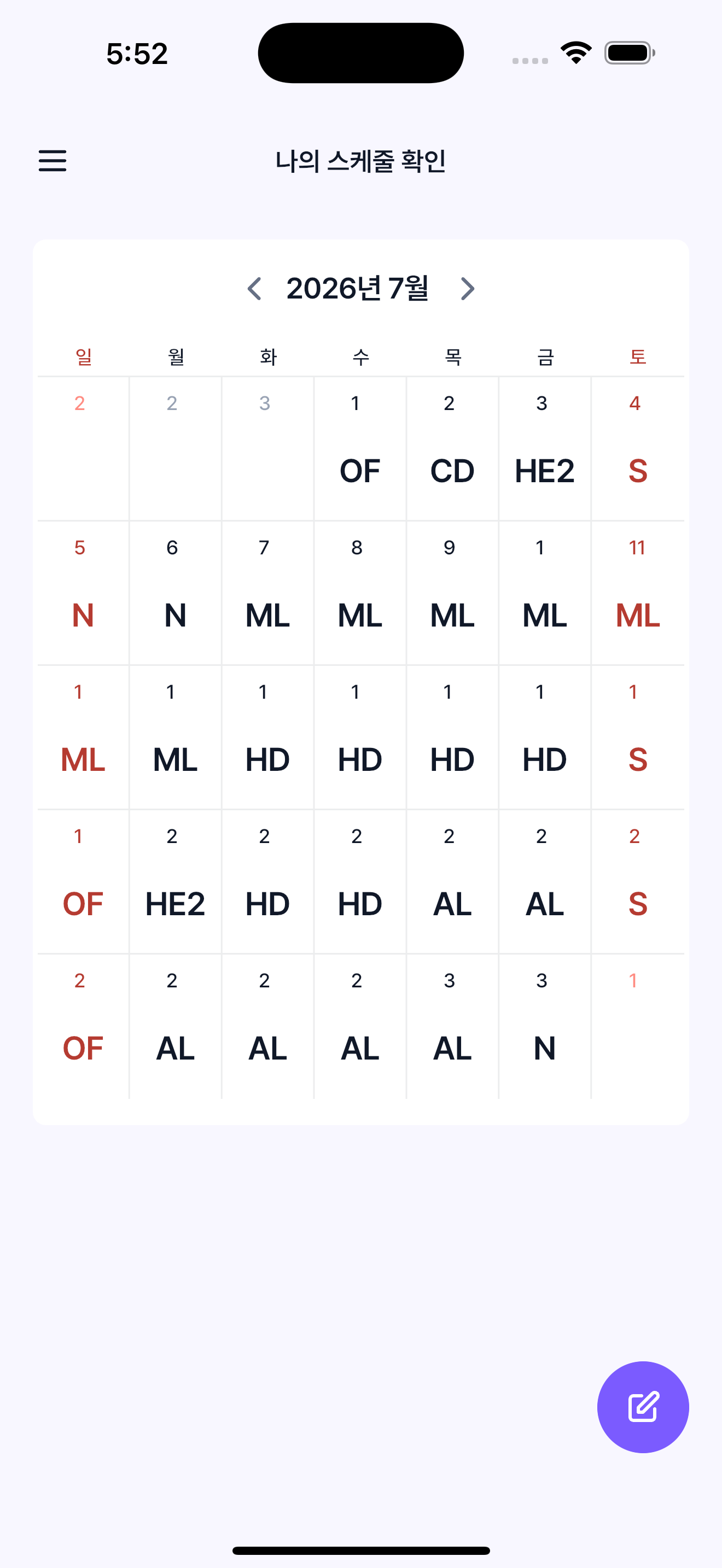
If your ward manager has not yet published a schedule, the screen shows "No schedule published yet."
3. Ward Schedule
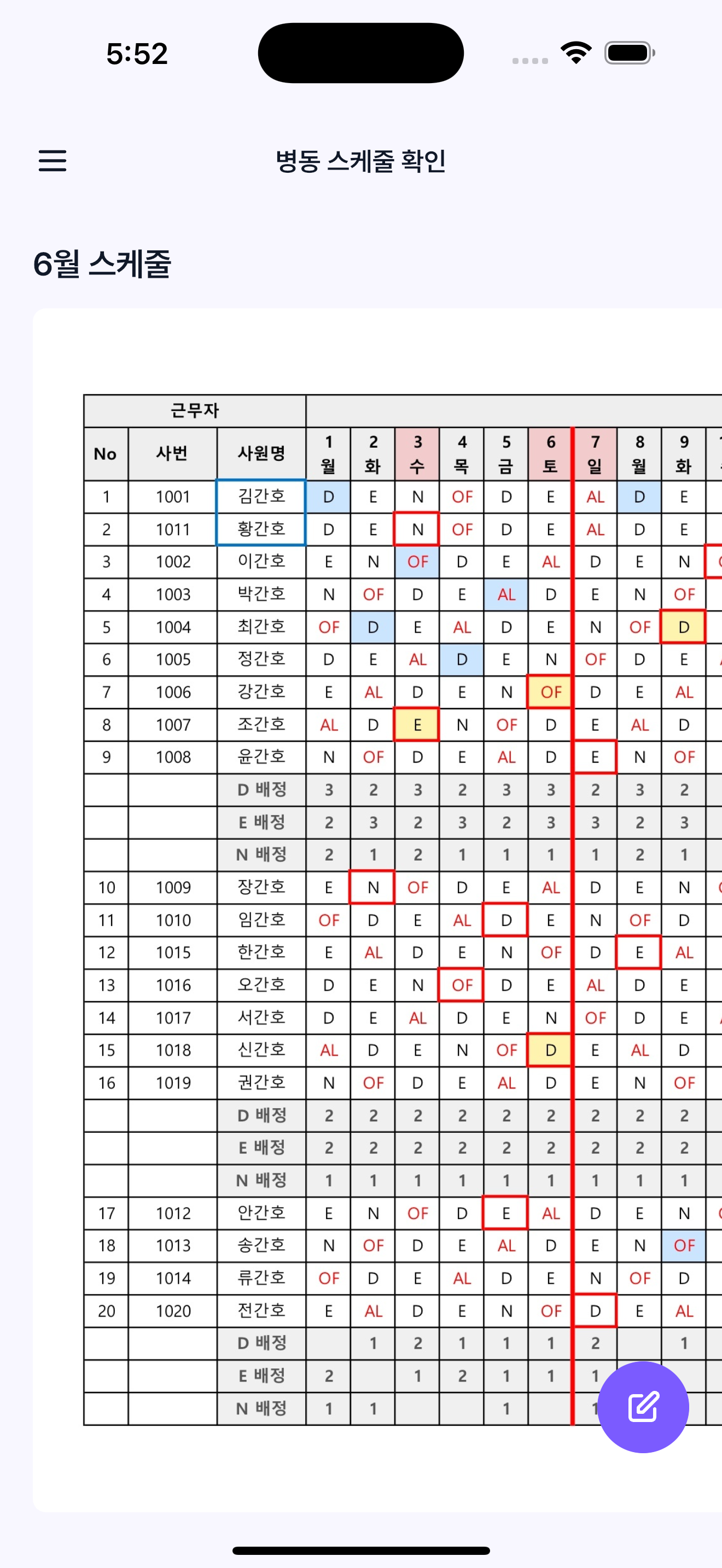
Select Ward Schedule from the left menu (☰) to see the full team's shift table.
- Scroll horizontally to view all dates and team members.
- Use this view to check colleagues' schedules and coordinate work.
4. Schedule Modification Requests
Submit a request to your ward manager when you need a shift swap, additional leave, or a schedule correction.
4.1 Submit a Request
- Tap the + button (bottom-right) on the My Schedule screen.
- Or go to Modification Requests from the left menu and tap +.
- Enter a title and describe the change needed (e.g., "Shift swap request for July 15").
- Tap Send — the request is delivered to your ward manager.
4.2 View Request History
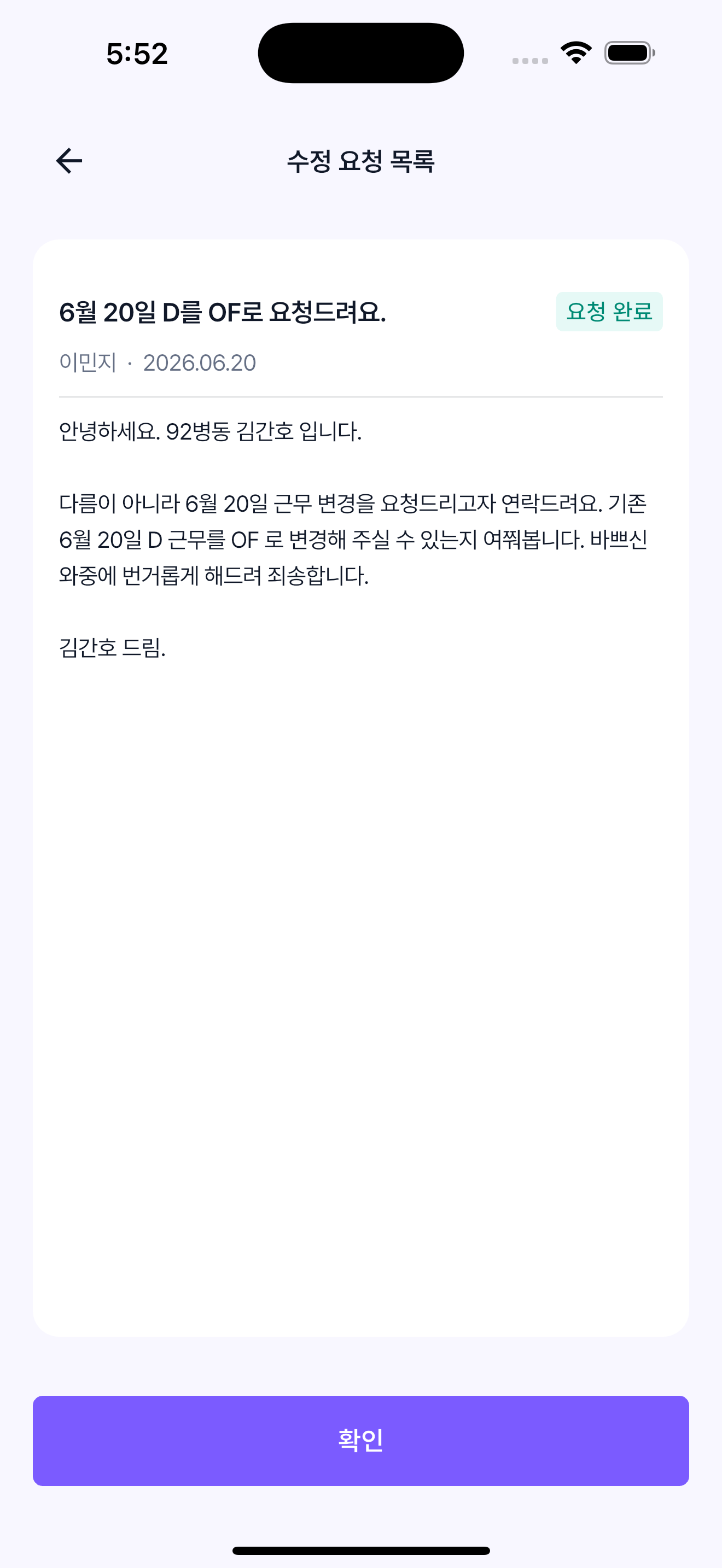
- Select Modification Requests from the left menu.
- View the title, content, and status of each submitted request.
- Scroll down to load older requests.
5. Other
5.1 Logout
- Tap Logout in the left menu (☰).
- Your session ends and the app returns to the login screen.
For further help, contact your ward manager or email info@omelet.ai.